How to Permanently Delete Files from PC?

The PC holds a great deal of private data, if you want to sell it you need to erase this data so that one not can access it. There are so many methods to permanently delete files from the PC. For example, you can choose the files and then click the Shift key and Delete keys together.

how to permanently delete files from pcThis would remove unwanted data from the PC permanently. However, this process of removing files is bulky and can take a great deal of time. Moreover, there is no guarantee that files removed this way can’t be recovered by a powerful data recovery tool.

Causes :

There is a reason behind the things you do. Here are some of the main reasons why you want to permanently remove files from PC or use the PC cleaner for your PC.

Remove the sensitive data on the hard drive before giving it to any other person or selling it

Usually, after you use the PC for a period of time, you may face different issues with it, thus some users may want to sell their old PC to purchase a new PC. However, the old system contains sensitive information and users want to keep it as secret.

Some files on the hard drive hold viruses

The virus is everywhere, and you cannot make sure your hard drive will be safe forever. Thus, once your files on the hard drive are infected with viruses, you need to delete the files to affect the entire hard drive.

How to remove files from PC

Permanent deletion of files from the PC isn’t much of an issue. However, to guarantee that the removed files are beyond recovery is a little tough. A PC cleaner tool can offer you the assurance that the files have been deleted permanently from your PC and there is no chance of recovery. You can find these tools quite easily available on the Internet. As many of them are not capable of removing files from the system. So, you need to choose your PC cleaner optimization tool wisely. Read More…

How do I remove Browser Cache and System Junk File?

final image

Clearing the cache on your PC is an easy and quick method to boost the speed. Remove those temporary files to free the space in Computer hard disk. However, finding the different caches in PC is tougher than in previous Windows systems. Here are some steps which will remove the browser cache and system junk file are:

Step 1: Delete Temp files

1

Start with the basic temp file cleanup to PC cleaner; go to the Start and type “disk”. You need to free up disk space by deleting unnecessary files. Select this to run Disk Cleanup.

1.1

1.2

Here, you can select the files you want to remove and you will get estimated space. After deleting your temporary files, there are other applications that need their own cache cleaning.

Step 2: Remove Internet Browsing cache

2

You can clear the cache from the desktop with the help of the previous step, but the version of Internet Explorer is a completely separate browser.

In order to remove the browsing history and clear the cache, you will first require opening up the Start Screen version. Click windows Key and C. You will see “Delete Browsing History” option. Click on the option and clear it out.

Step 3: Clear the Windows Cache

3.1

To remove the cache of your Windows store, go to start menu and open “Run” box or press “Windows key + R”. Then type “WSReset.exe”. The store of Window will seem and command box is also opened. The command box has no text. It’ll be deleting cache in the background. When all cache will delete the command box will automatically close.

Step 4: Clear your Windows Search History

4

The search function is probably the one you must use. It is the easiest method to locate files and programs. Windows 8 will learn to help prioritize which applications it searches first, but every now and then it is nice to make it forget. Open up the Charms Bar and hit the PC settings.

Click on the Search option and you should see Search History at the top. There is an alternative to Delete History. Click it and clear all the Search history. Read More…

Things one should know about PC Cleaner

We all use Computers in our day-to-day life. It is very common for all the users but if the device is experiencing the same issue again and again, then the solution is to get the best PC cleaner for your PC. Sometimes a corrupted or out-of-date file on your system may cause you problem and for that you may require a software to remove the issue.

Things one should know about PC cleaner

The PC cleaner has some great characteristics like:

• Remove duplicate files and folders for more spaces
• Battery Saver
• Remote PC cleaning
• Disk cleaner
• Free up space by deleting needless applications and remove your browser and application history
• Routine performance automatically

PC cleaner clears viruses from your PC and clears your disk, duplicate files, clean registry etc. The extra benefit of this interface is that it provides repair services also in one go. Things like removing junk files, repairing registry issues, identifying security and optimizing your internet connection, can all be done in easy steps.

How to use a PC cleaner

1. Download and install the PC cleaner which you select for your system.
2. We suggest you check Internet Explorer, System, and Windows Explorer.
3. While under the Application bar, check the followings:

• Firefox
• Google Chrome
• Applications
• Internet
• Multimedia
• Utilities
• Windows

After checking these options, select Run Cleaner and let your PC cleaner run its course.

To eliminate the issues, follow the below-mentioned steps

1. a. Select the Registry option
b. Check System Temp and Junk Files
c. Check browser temp, cache and cookies files
d. Check system duplicate

2. Choose Scan for the issue and allow your PC cleaner to scan.
3. Then, click fix selected problems
4. When PC cleaner asks “Do you want to create a system restore point?” Choose the Yes option.
5. Once your backup has completed, choose ‘Fix all selected problems’.

We recommend you to use Kwiksolve software to clean the unnecessary files from your PC. This optimization tool optimizes speed and performance of your PC by fixing frustrating errors and crashes. Read More…

What is the Effect after Clean my PC?

To remove all unwanted and temporary files from your system, first you need to know what effect it will leave on your PC. You can remove some of the data that you have stored in the PC using the PC cleaner tool. Before cleaning your PC make sure you have taken a backup of all the vital data. If you are removing only the temporary and unnecessary files, you don’t have to take back up. Here are some of the effects your PC will experience after using cleaner tool.

image2.1_11. Better speed:

This is one of the effects of cleaning the PC, using a cleaner tool runs faster than the one which has a huge amount of data and old. This is the reason your PC runs fast when you first got it from the store. The data starts to accumulate and that result against the speed of the PC. In order to get back the speed, you need to use PC cleaner software.

2. Efficiency:

The efficiency of the system enhances with daily cleaning of the OS. The ability to do the different task faster than you normally do. Playing games on a cleaned PC will surely give a better experience than the old one.

3. Stress Reduces:

Having a clean system can cut your work. With a clean PC, you need to think only about how to use it and not to worry about other issues associated with it.

4. Reliability:

A clean PC is reliable than the old one. If you fail in cleaning your PC, you will end up seeing your PC crashing very often. Unstable PCs have a tendency to lose data.

5. Saves Money:

Having a cleaned PC can save lots of money. As a cleaned PC will not cause any damage to hardware’s associated with the system but unclean PC will end up with hardware issues.

6. Boosts the lifespan of the PC:

If your PC is filled with dust then your PC’s hardware parts can damage quickly and you will have to replace the components more often. If not you have to purchase a new system. By daily cleaning, the PCs companies can get benefits of saving money by enhancing its lifespan.

7. Keep your data secure and safe:

A regular cleaning makes sure that what you have deleted is actually gone. Moreover, use of Pc cleaner tools guards against the ill effects of employee use of unauthorized software which slows down the PC and clutters the registry.

8. Increase the life of your PC:

Regular use of the PC cleaner registry utility removes the issues with the system and boosts the usable life of your Computer system. Read More…

Why Choose PC Cleaner?

You might have heard about PC cleaners or even seen them suggested on magazines and websites. Do you have asked yourself: do I really need a PC cleaner? The answer to this question is ‘yes’.

We usually purchase vacuum cleaner or washing machine, because we don’t want to waste our time cleaning the floors with a broom or doing laundry by hand. In the same way, PC cleaners make our life much easier and remove the system junk easier and faster. Here are some of the reasons why one needs to use a PC cleaner.

pc cleaner

1. To freeing up space and keeping your PC organized

There was a time when your PC came with more disk space than most people ever needed. SSDs began to replace hard disks and capacities dropped again; storage space became more expensive and precious. But before investing a lot in SSDs, you can go for the PC optimizer software. Pc cleaning tools allow you to tackle lots of various storage-clearing tasks in one place.

2. To enhance the speed up the performance of PC

As you use your system, it accumulates files that take up space and can slow it down. These files include temporary files that were supposed to have been removed but were missed, system cache files, logs and browser caches. You could delete all these manually but that would take a lot of time. A good PC cleaner will scan for files that are not required, and then allow reviewing the results. With the help of PC cleaner, you can manage your autorun programs automatically when you start up your PC.

3. For Effective program uninstallation

Pc cleaner allows you to choose multiple applications to be uninstalled from one user interface. The utility removes the applications and all the files associated with them. It is much simpler and quicker than the manual way and it helps you prevent additional junk files on your disk.

4. For Privacy protection

A good PC cleaning application allows you to securely remove files by overwriting them numerous times. Again, it makes life easier by allowing you to choose different files for secure deletion and takes care of the rest. The PC cleaner will keep your private data safe by eliminating browser files that allow sites to track you across the web.

5. To Keep your system stable

Windows’ registry database stores configuration settings for the PC and applications. Some of the entries get older; some of them become outdated or corrupt. To minimize the chances of this becoming an issue due to corrupt entries, PC cleaners help you to clean up the registry database. Moreover, it allows you to review the results of the scan and decide for which entries you want to deduct and which you want to keep. Read More…

How to Select the Best Free PC Cleaner Application

There are lots of PC cleaner options available but choosing the best cleaner is the toughest job ever. Here are some of the points that can help you in choosing the the best PC cleaner application. If you are selecting PC cleaner for your PC, check these points in it and then download it.

How to Select the Best Free PC Cleaner Application

1. Attentiveness

A good PC cleaner should have a feature of attention as it is very important for an optimization tool. A great cleaner is often able to see things that other people can’t and will remove things their customers didn’t even know required cleaning.

2. Honestly

If you own the other qualities that make a cleaner great, your job should be incident free. However, if you do a lot of cleaning it is possible that there may be a mishap. If anything were to happen it is important that you are honest with your customers so you can solve the issue with minimum trouble and get back to what you are great at cleaning.

3. Pride

A good cleaner should have humility and pride because if a cleaner doesn’t take pride in their work, it is not possible to do a good job.

4. Timekeeping

A good timekeeping quality of a PC cleaner involves organizing yourself effectively during your clean so you can work efficiently. If a cleaner that you selected is not able to complete the tasks then you should choose the best quality with a joint resolution.

5. A sense of humor

There will certainly be times during your work as a cleaner that you come across something a little unsavory, but if you clean a lot it will probably happen. Being able to have a sense of humor about these things will make your work easier.

6. Discretion

As a cleaner, you will be left alone in people’s homes. Your customers trust you to do your work without snooping around, but you may come across sensitive information. Whatever it is you come across, it goes without saying that the information shouldn’t leave that home even if it doesn’t seem like a big issue.

7. Endurance

A PC cleaner should be user-friendly and should clear all the temporary files, recycle bin, history, cookies and log files. If your PC cleaner has this quality, you can go with it.

So, these are some of the qualities that you should check when choosing the best free PC cleaner application. If a PC optimization tool doesn’t have these points, then it is waste to download it as it will not give you the best services. If you want to choose the best free PC cleaner application for your PC, then you can download Kwiksolve. Read More…

How to Increase PC Speed With Kwiksolve

If your Computer is running slower than you can download Kwiksolve and install it to boost the speed. Think of it like a spring clean, clearing out applications you no longer use, eliminating temporary files which are taking up room on your hard drive are chores you’d probably rather not do, but they can make a big difference to any Computer. We will share how you can enhance your PC speed and performance with Kwiksolve software.

1. Clean up your hard drive

The data of a PC or laptop will fill up the hard drive. This, in turn, slows performance, as your computer has to go further and work harder to search the files and programs it requires to access. Deleting as much junk as possible will help to restore your Computer responsiveness. And our Kwiksolve software will help you in doing so. It removes all unwanted files from your PC.

2. Delete files, programs which are not needed

Next, Kwiksolve helps in removing files, programs that you don’t use. You can list the programs and the space they take up. This will spice up your system hence the speed increases.

3. Clean up and organize your PC

With the help of this amazing application, you can clean and organize your computer system. Trust me, it’s so easy to remove the duplicate files and programs from your PC. Once your PC is free from junk and unnecessary temporary files, you should have more free hard drive space. The larger free space on the hard drive helps with performance because the drive capacity isn’t constantly being pushed to

4. Removes viruses, spyware, malware, adware, etc.

Kwiksolve is an application which removes viruses, malware, adware, spyware from your PC and Speed Up Your PC and its performance. If your system is working slowly, then you can install this software.

5. Clear all caches

To enhance PC speed clear all caches such as remove files from recycle bin, delete temporary files in a temp folder or you can use Kwiksolve for it. Kwiksolve is the software which helps you to clear all caches in one click. Read More…

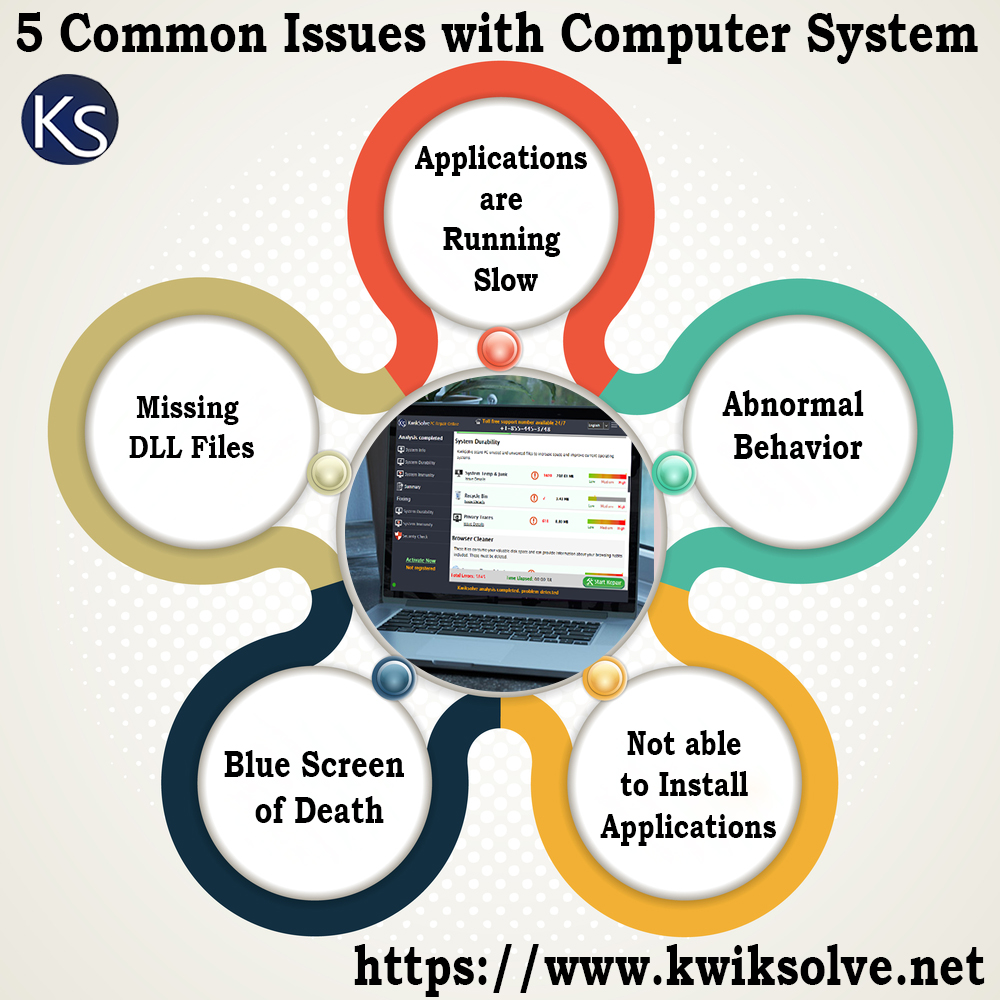
5 Common Issues with Computer System

Imagine, you are working on some important task on your PC, and an error message comes across your screen. What would you do in that case?

Well, most of the difficult problems can be solved by some technicians. And there are lots of issues that hamper your device. Generally, you would run to a repair shop, but sometimes, you don’t need to panic, because there are various issues that each and every computer owner is experiencing. Well, that doesn’t mean you should take these problems lightly, knowing and recognizing some common issues would help in saving time and money. In this article, we will give you information about some common issues that you can experience while using a Computer or Laptop.

5 common Issues with Computer System


1. Applications are running slow

Sometimes when you didn’t update your OS, the Computer system start running slow. Every time you open an application it just runs slow. This could happen due to lack of space in your hard drive, so, get the best PC cleaner to clean the drive and updating the software and OS would make your PC to run smooth.

2. Abnormal behavior

This is one of the strangest errors of the PC. If you are not able to see the top margin in a word document. It is there in the printout though. Generally, restarting your PC would solve it, but if strange things keep happening then better to go for Computer support services.

3. Not able to install applications

Sometimes, when you try to install an application, your computer doesn’t let you do this particular task. If you can’t download software, then this is due to lack of space in the hard disk. All you need to do is remove the files which are not important. You don’t need any laptop or Computer repair service for this, because being the owner of the PC or laptop, you better know which file is important and which is not. If you want to know in detail about How to Increase PC Speed,  Click Here

4. Blue Screen of Death

Blue Screen of Death is the scariest computer issue that you might come across. Your computer will show a STOP Error. You can experience this issue due to many reasons such as hardware failure, damaged software, and corrupt DLL files.

5. Missing DLL files

DLL files house information for your OS on how to execute different functions. Your PC loses DLL files or something damages them. When your Computer can’t read the DLL file, it doesn’t know how to respond in that situation. You may have a corrupt or missing DLL file if you get an error message every time you perform a different function. Read More…

Reasons Why Computers Fail to Function Normally

Sometimes our PC fails to perform tasks normally due to the severe slowdown of the computer system by the junk files and folder that are created in the PC’s memory. A slow PC can result in the wastage and loss of your useful time while working on it.How to select the best pc cleaner toolsThe main reason for computer failure is human error. It is good to have Best PC Cleaner for your PC. Even when you have safety systems in place, protocols must be followed, such as ensuring your emergency batteries remain charged.
1. Environmental factors

The environment that your PC is stored and operated in can cause a failure if it is not good for the hardware. Computer servers fail in the presence of excessive heat, making cooling systems important. Computer systems produce their own heat; the temperature is optimal for a large server may conflict with the temperature that is preferred by employees.

PCs are sensitive to the amount of electricity they are using. Voltage spikes can wipe your PC and can be a reason for lost data. Surge protectors can assist regulate the electricity to avoid the harmful spike in voltage.

2. Hardware and Software

Maintenance is the best method to avoid failures. Software should be kept updated with the patches available as they become available to resolve any issue that has been discovered. Similarly, your virus protection software should be updated to take benefit of the most recent security threats. More information about How to Select the Best PC Cleaner Tools Click Here?

Backup your data on a regular basis to an external storage device, and learn to recognize the indications of a hardware failure.

3. Power loss

When the power goes out, your PCs will too, which leads to damage and data loss to your system? Having a backup system is very necessary, and should be maintained carefully. A generator can keep your systems up long enough to do vital backups and save your data, before shutting down safely.

If an organization uses a Power Distribution Unit in your PC room to distribute power to the different components, this should be kept in good working order to avoid a power outage to your equipment. Read More…


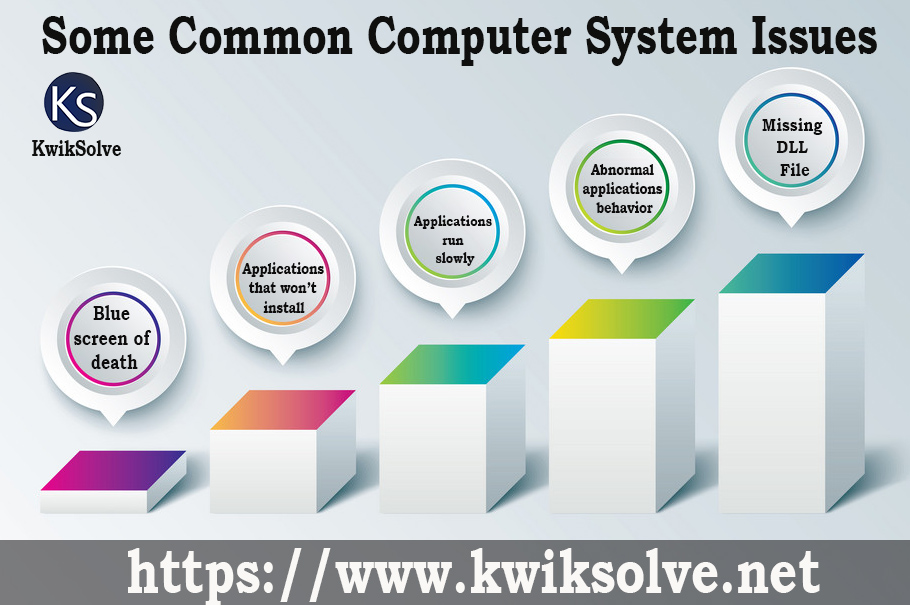
Some Common Computer System Issues

You are working away at your PC when suddenly an error message comes up. Your computer comes to a screeching halt. Deciphering what computer issues you have and how to solve them can be difficult, especially if you don’t know as much as you’d like about your Computer system. So, here are some of the computer issues.

Infographics box square paper with 5 data template. Vector illus

Blue screen of death

Blue screen comes up on your computer screen with a bunch of white text; it probably has the opposite effect. The blue screen of death may appear as the scariest computer issues you’ll come across. However, all your computer may require is for you to reboot it. This STOP error seems on your screen for various reasons: damaged software, failing hardware, corrupt DLL files, issues with drivers and more. The remedy for a blue screen of death depends on the original issue. The screen offers you with codes that can assist you to identify and solve your computer issues. It is much required to use a best PC cleaner to get rid of this issue.

Applications that won’t install

If you are facing issues with the installation of an application, it may be because your PC doesn’t have enough space. If this is the case, you require to free up some space. This problem is the least problematic. You can remove some temporary files which are not used.

Applications run slowly

There are many reasons software might be working at low speed. You as a user may face many types of PC issues that can be related to OS or an application, your computer doesn’t have enough space and OS might be missing updates. If you don’t have enough space in the hard drive, you can scan, clean and optimize your hard drive,

Abnormal applications behavior

Computer issues involve applications acting strangely oftentimes leave you wondering what has happened. Your application is working just fine, it is doing something strange. You can also read How to Boost the PC Performance? Click Here

Missing DLL File

DLL files house information for your OS on how to perform various functions. Your computer fails DLL files or something destroys them. When your computer can’t read the particular DLL file, it doesn’t know how to respond in different situations. You may have a missing or corrupt DLL file if you get an error message when you perform a function. If your PC issues are stemming from damaged and missing DLL files, you can restore them by downloading them back onto your computer system. Read More…