How do I Get the Best Performance out of my Computer?

We enjoy working on a computer if it is working smoothly. A slow PC always creates trouble. There can be an issue behind the drag down your PC, from compatibility problems, bugs, viruses, or failing hardware. Thankfully, there is no need to replace your PC as there are some points, following which you can get out of the trouble. You can get a good performance boost from tinkering with start-up programs or defragmenting the hard disk. Here are some affordable and easy methods to squeeze performance from your PC.

How do I Get the Best Performance out of my Computer

Disable startup applications

If you don’t use all the applications on your PC on regular basis, then you can disable them as they can just be running in the background killing valued system resources which are the reason behind slow down the experience. Removing it will speed up your PC.

Select applications wisely

You need to choose applications wisely for your PC. Poorly designed apps and those loaded with unrequired features can reduce the performance. If an app comes from a famous brand that doesn’t mean that is a good application for your PC.

It is better to install apps from the store which have been checked for security and performance.

Clean the browser

You should clean your browser regularly. To clean Chrome, click the icon in the upper right corner, then go to the “Tools”, and then “Clear Browsing Data, and then check the history boxes, cached and cookies items.

Remove unrequired applications

When you buy a new PC, it will come with many pre-installed applications or programs that you don’t need. Tools that you never use will only be taking space and resources on your PC.

Defrag your drive

You should defragment your drive or plan it to perform this action. You can do this on monthly basis. However, if you download, move, uninstall, or install programs, you may require doing it more regularly. Read More…

How do I Make my Old Computer Like New?

Have you ever noticed that your PC now runs slower than it did when you first bought it? PCs tend to sluggish over time due to clutter on the hard drive and other software related problems. Take a few minutes to try out these tips, and your machine will be zippier and less prone to system’s performance.

How do I make my old computer Like New

Remove duplicate files

If you can’t find a file on your PC or accidentally it may be deleted, then this can be a big loss. Have you ever found the same file in different locations and not known how it got there? You may not be able to do much about it, just a look through your images and video folders, as these are the place where you can get duplicate files. Find them and remove them to speed up your PC.

Delete Junk files

Junk files are files that are produced by software and applications that contain temporary data. Even though they are not used regularly by their particular programs, they will take up disk space. Junk files are stored in various locations on your PC, so they can be hard to find.

Uninstalling useless programs

We all try new things. There is nothing wrong with that, and we encourage it. The issue is that many people will try a new application, use it once or twice and then forget about it. There is the matter of branded systems that came pre-installed with unrequired bloatware. These applications are used barely and mainly just sit in your PC, taking and never giving.

Add more storage options

You can expand the set of storage options. For this, you don’t need to buy a new HDD or external drive. You can move files to cloud storage options like Google Drive, Dropbox etc.
Once you moved data from your internal drives, the additional space will help to speed up your PC.

Run the disk defragmenter

Disk defragmenter is another source within the Windows OS that allows you to mix fragmented data that is stored in various locations over a period of time.

If you want to fix your old computer, download Kwiksolve and install it quickly. This tool will remove all the unwanted files, temporary files from the PC and enhance the speed and performance of the PC. The experts at Kwiksolve will help and address the issues. They resolve the issues as soon as possible and offer better service to the users. Read More…

What is the Reason of Slow PC?

Experiencing frustration due to a sluggish PC? Finding the issue might be frustrating if you don’t know where to look. There may be various reasons your PC is slowing to a halt.

What is the Reason of Slow PCWe have come up with a list of some main reasons behind the slow PC. Hopefully, this will begin to narrow down your problems and speed up your PC and lowering your stress levels, too.

Let’s have a look at some of the common reasons for PC slowdowns.

1. Unwanted registry entries:

Unwanted registry entries can be the foremost reason behind the PC slowdowns. Practically everything you do on your PC makes a Windows Registry entry. Windows Operating system doesn’t clean outdated Registry entries daily.

2. Unrequired files and programs

Unrequired files and programs can be the second reason for the bad performance of your system. Files and programs you fail to clean up can pressure your hard drive and slow things down. Free hard drive space is required to allow programs to operate at top speed.

3. Outdated browser add-ons:

What you do on a PC is online; anything that decreases the web browser will directly affect the performance and speed of your device. Your PC may be full up with toolbars and add-ons you didn’t even know you had that run in the background, using the space.

4. Full hard disk

The fragmented parts of your hard drive can be another reason behind the system’s speed. The hard drive is a leading bottleneck. Over time, your PC data becomes fragmented into pieces, spread over a large area taking up space on your drive, causing your drive to work slower than it should.

5. Security flaws in chips and processors

Security flaws in chips and processors can also be a reason behind the slow performance of PC. A security patch to CPUs that was meant to solve such a flaw was found to cause unexpected reboots. Read More…

How to Fix Locking up the Issue of Your PC

It happens to everyone at some point. You are doing something on your PC, whether it’s some aimless browsing or an important project, without warning everything freezes. If your PC has stopped responding, you can go through the following points mentioned below that will help you to over come the situation.


How to Fix Locking up the Issue of Your PC

1. Restart

This step is so obvious. However, some people think they have to power plug the Computer but instead of doing this, you can hold the computer’s power button for 5 to 10 seconds and it will restart with less disruption.

2. Computer starts fine

If the PC starts up fine, back up your vital information in case of a serious issue is on the way. Otherwise, you could find yourself scrambling through more complicated methods to get files off a dead PC. Then use the computer until the same issue repeats, although it might not. This will speed up your PC for sure and resolve the locking up issue of your computer.

3. Excess heating up

If the temperature of your PC is higher than normal, there is high chances that your PC may freeze. The indications through which you can check the higher temperature of your processor are abnormal noise on starting. Consider the Computer when you turn it on and listen to the sound generated by the fan.

4. Computer asks you how to boot

While restarting, the PC might say there was an error with Windows and ask if you want to start normally. Select start Windows normally. Then backup your data and keep using the PC to see if it freezes again. If this is the second time your PC has frozen, select to boot in “Safe Mode with Networking.” Use the Pc and see if it freezes again. If it doesn’t freeze again while in Safe Mode, it is likely a software issue.

5. BIOS settings

Changing BIOS settings can be a reason behind the system freeze. RAM or system processor causes issues. If this is the reason of freezing your PC, reset the BIOS settings to default. This can also be done by eliminating CMOS and putting it back after some minutes.

6. Computer freezes again immediately

If the PC freezes again, then it could have a serious software or hardware issue. However, it is mostly a hardware issue. If you want to know about What is the Reason Behind a Slow PC? Click Here

7. Driver issues

Damaged drivers can also be the cause behind PC freezing. If video drivers being installed on your PC are not updated, the system might hang up while you try to play a video. Look at the list of devices to check that no exclamation mark exists corresponding to a device driver.

8. Test the RAM

If the RAM of your PC fails completely, your PC won’t even turn on. However, memory fails gradually and will work up to a point. If your PC memory is failing, your PC may power on but then freeze, stop, or reboot at some point during Windows startup. Change the memory in your PC if the memory test shows any type of issue.

9. Test the Hard Disk

A physical issue with your hard drive could be a reason why Windows reboot continuously. A hard drive can’t read and write information and can’t load an OS properly.

10. Power issues

Your PC power supply unit must be efficient to offer sufficient voltage to the system. Even if you have a great PC with the trending processor, CPU, sufficient RAM, and a modern motherboard. You can avoid this by installing an uninterrupted power supply unit that can solve low voltage problems and keep the PC running for some time without power. Read More…

How to Make Your PC Faster and More Stable?

A newly purchased computer runs faster and smoother. The performance of a computer slows down as long as we use it. Keeping a computer stable and increasing its performance has never been an easier task. Let’s explain a few things that could make your PC faster without many effects.

how to make your pc faster and more stable.jpg

1. Upgrade your hardware:

The first thing you have to do is find out whether you have enough hardware to run the installed programs or not. For that, you need to

  • Click Start > Control Panel
  • Next, in the Address Bar, type “Control Panel/ All Control Panel items/ Performance Information and Tools” and clicks ENTER.
  • Choose “Re-run the assessment or Rate this PC” option.
  • The procedure may take a few minutes.
  • After it is successfully finished, results may occur, where you will get information about the hardware components which you require to upgrade.

2. Defragment your Hard Disk:

The hard disk gets fragmented. In easy words, a file is stored in a non-continuous manner which slows down the operation on your PC. Defragmenting your hard disk would help to Speed up your PC. Disk Defragmenter is a tool to perform this operation.

  • Go to the “Start” button, choose “All Programs”, Accessories, then System Tools and at last Disk Defragmenter.
  • Choose all the drives to defrag.
  • Select “Defragment Disks” options to start.

3. Defragment your Registry:

A registry is a database where OS and application settings, configurations and other data are stored. The registry is accessed by all the computer programs. This access often fragments the registry which slows down your computer. As there is no built-in Registry Defragmenter tool in MS Windows, you have to select a good third party product. If you want to read about ” How to Fix Slow System issue? ” Click Here

  • Download Rainout Registry Defrag with the help of the Internet.
  • Then, do log in from the administrator user account and install the software. Run it when the procedure finishes.
  • Close all other running tasks.
  • Begin analyzing the state of your registry and then select the “Defragment” option to start the procedure. A system reboot is needed.

4. Control the Start-up services and applications:

After the OS is booted; a number of programs and services are started. The bigger this list; the slower the PC. This is why control these programs and services and disable all the third party tools which you really don’t require.

  • Choose Start > run
  • And, then type “msconfig” and tap Enter.
  • Under “Startup” option, disable unrequired applications and select Apply.
  • Under “Services” option, mark the box “Hide all Microsoft Services” as checked, and do disable the non-needed services. Select Apply after that.
  • Tap on OK and reboot the Computer when prompted.

5. Change the PC settings for best performance:

While changing your PC Setting, there are 2 choices either set Windows for best appearance or set Windows for best performance. By selecting the latter, the PC is set by applying those settings which help to make it work faster.

  • First of all, right-click the “My Computer” option on your computer screens.
  • Choose “Properties” alternative.
  • In the new page, go for the “Advanced System Settings” option.
  • Then under “Advanced” alternative, go to the “Settings” under “Performance” frame.
  • Tab on the “Adjust for best performance” option from the “Visual Effects” alternative.
  • Click OK. Read More…

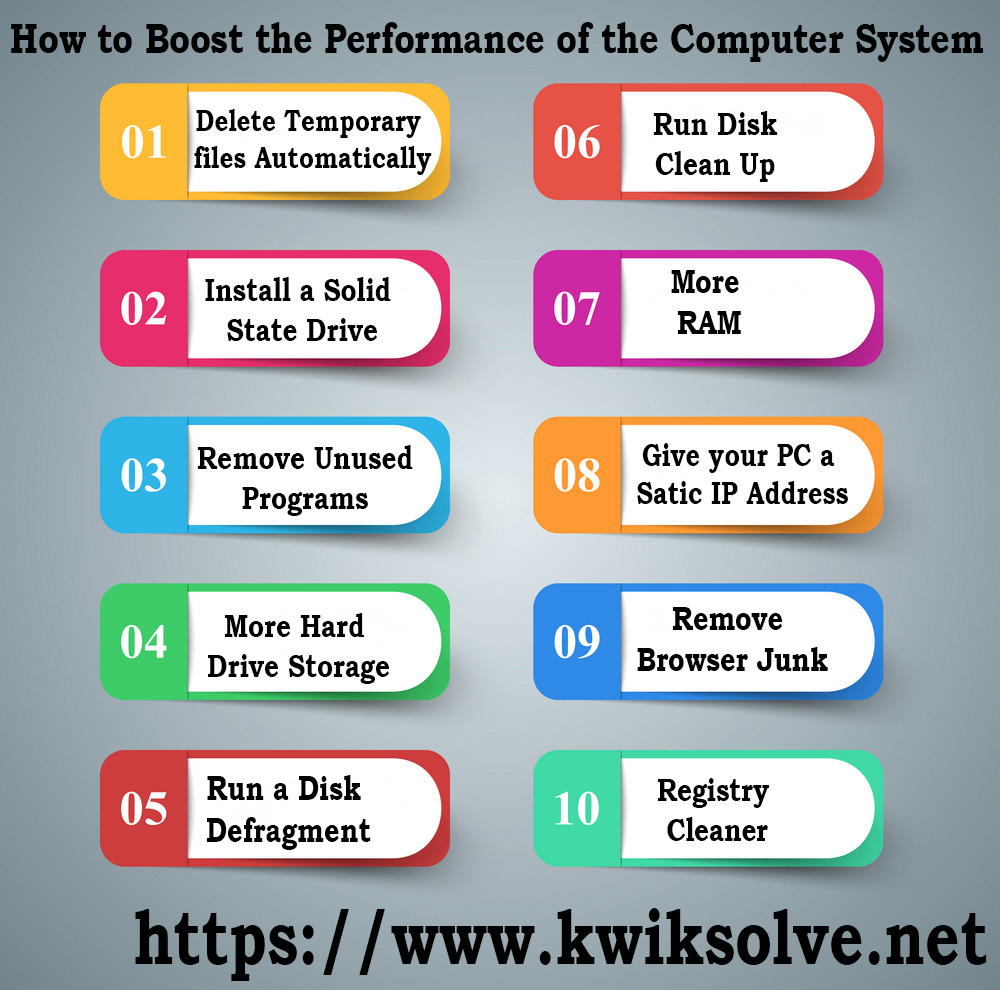
How to boost the performance of the Computer System

There is nothing more frustrating than a slow computer system. A computer can get clogged up with files, software, and other digital trash that can make you experience from sluggish performance. In such a situation most people would consider buying a new PC. Rather than buying a new PC or laptop, you can use some of the tips to make your Computer work faster.

Infographic design. List of 10 items.

1. Delete temporary files automatically

Temporary files take place through all the tasks and can remain on your hard disk, slowing the PC down. Speed up your PC by removing these files will give you a larger amount of space in your hard disk. Go to “My Computer” and choose the local drive (C Drive). Then, select the “Windows” folder and open the folder named “Temp”. Delete the files in the “Temp” folder.

2. Install a solid state drive

Hard drives are the main reason behind the slow speed of the PC. Installing a solid-state drive can speed up your startup considerably.

3. Remove unused programs

A new PC comes with lots of programs that you will never use and you will not get to know they even exist in your PC. Various programs run in the background while you are loading your PC, though you may not be using them.

4. More hard drive storage

Even if you ensure to clean out all your temporarily files daily, it will affect the speed of your computer.  If you film videos or use your computer system for recording TV, then you need to use a big hard drive space. If You want How do I Manually Optimize my Computer? Click Here

5. Run a disk defragment

This is a method of reconfiguring how your hard drive stores information for maximum efficiency. Go to My Computer > Right click > Properties > Tools > Defragment Now.

6. Run disk clean up

Windows comprise a built-in disk de-cluttering tool called “Disk Cleanup”. It searches through the system for unnecessary large files such as program installers, Internet files and so on.

Go to Start > All Programs > Accessories > System Tools > Disk Cleanup for open disk cleanup.

7. More RAM

Random Access Memory is the storage memory used by your computer and is in use when tasks are being executed by various programs. Therefore, the more programs you use, the more RAM you require, and the slower the performance of your computer will tell you that you don’t have enough space in it. You can either add more RAM with an additional memory stick or two or buy getting completely new memory if all the slots are taken.

8. Give your PC a static IP address

Last but not least, giving a static IP address that remains the same is also a way to speed the performance of your PC. When you use your PC it spends a good amount of time requesting the network for an IP address. If you have a static IP address it will help make managing the network and make the startup faster.

9. Remove browser junk

It happens with us always when we search something on the browser, it works so slowly.  It is better to remove browser junk by removing the entire internet temporary file. This will enhance the speed of your browsing.

10. Registry cleaner

It is important to clean the window registry, as it slows the speed of the computer. Cleaning the registry cleaner not only enhance the performance of the PC but also eliminates the blue screen as well. Read More…