
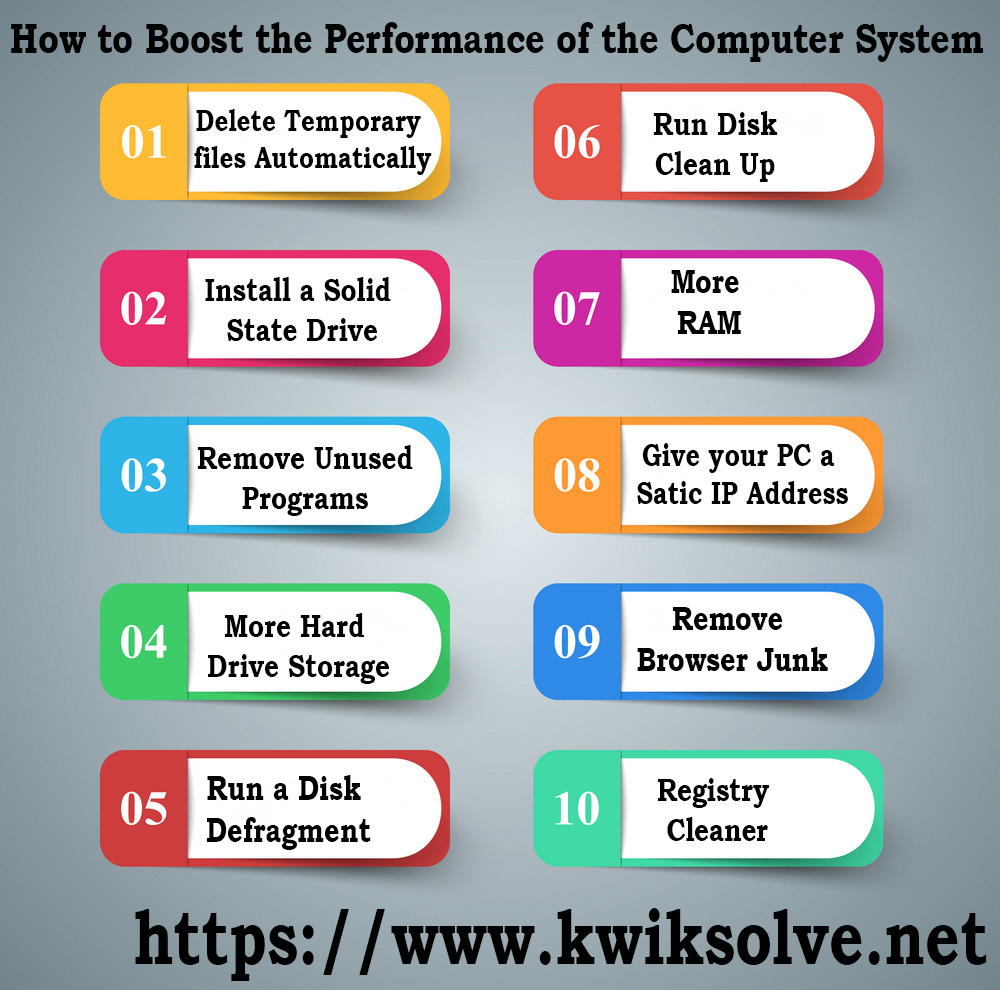
A newly purchased computer runs faster and smoother. The performance of a computer slows down as long as we use it. Keeping a computer stable and increasing its performance has never been an easier task. Let’s explain a few things that could make your PC faster without many effects.

1. Upgrade your hardware:
The first thing you have to do is find out whether you have enough hardware to run the installed programs or not. For that, you need to
- Click Start > Control Panel
- Next, in the Address Bar, type “Control Panel/ All Control Panel items/ Performance Information and Tools” and clicks ENTER.
- Choose “Re-run the assessment or Rate this PC” option.
- The procedure may take a few minutes.
- After it is successfully finished, results may occur, where you will get information about the hardware components which you require to upgrade.
2. Defragment your Hard Disk:
The hard disk gets fragmented. In easy words, a file is stored in a non-continuous manner which slows down the operation on your PC. Defragmenting your hard disk would help to Speed up your PC. Disk Defragmenter is a tool to perform this operation.
- Go to the “Start” button, choose “All Programs”, Accessories, then System Tools and at last Disk Defragmenter.
- Choose all the drives to defrag.
- Select “Defragment Disks” options to start.
3. Defragment your Registry:
A registry is a database where OS and application settings, configurations and other data are stored. The registry is accessed by all the computer programs. This access often fragments the registry which slows down your computer. As there is no built-in Registry Defragmenter tool in MS Windows, you have to select a good third party product. If you want to read about ” How to Fix Slow System issue? ” Click Here
- Download Rainout Registry Defrag with the help of the Internet.
- Then, do log in from the administrator user account and install the software. Run it when the procedure finishes.
- Close all other running tasks.
- Begin analyzing the state of your registry and then select the “Defragment” option to start the procedure. A system reboot is needed.
4. Control the Start-up services and applications:
After the OS is booted; a number of programs and services are started. The bigger this list; the slower the PC. This is why control these programs and services and disable all the third party tools which you really don’t require.
- Choose Start > run
- And, then type “msconfig” and tap Enter.
- Under “Startup” option, disable unrequired applications and select Apply.
- Under “Services” option, mark the box “Hide all Microsoft Services” as checked, and do disable the non-needed services. Select Apply after that.
- Tap on OK and reboot the Computer when prompted.
5. Change the PC settings for best performance:
While changing your PC Setting, there are 2 choices either set Windows for best appearance or set Windows for best performance. By selecting the latter, the PC is set by applying those settings which help to make it work faster.
- First of all, right-click the “My Computer” option on your computer screens.
- Choose “Properties” alternative.
- In the new page, go for the “Advanced System Settings” option.
- Then under “Advanced” alternative, go to the “Settings” under “Performance” frame.
- Tab on the “Adjust for best performance” option from the “Visual Effects” alternative.
- Click OK. Read More…
 The main reason for computer failure is human error. It is good to have



 kwiksolve