How to boost the performance of the Computer System

There is nothing more frustrating than a slow computer system. A computer can get clogged up with files, software, and other digital trash that can make you experience from sluggish performance. In such a situation most people would consider buying a new PC. Rather than buying a new PC or laptop, you can use some of the tips to make your Computer work faster.
Infographic design. List of 10 items.

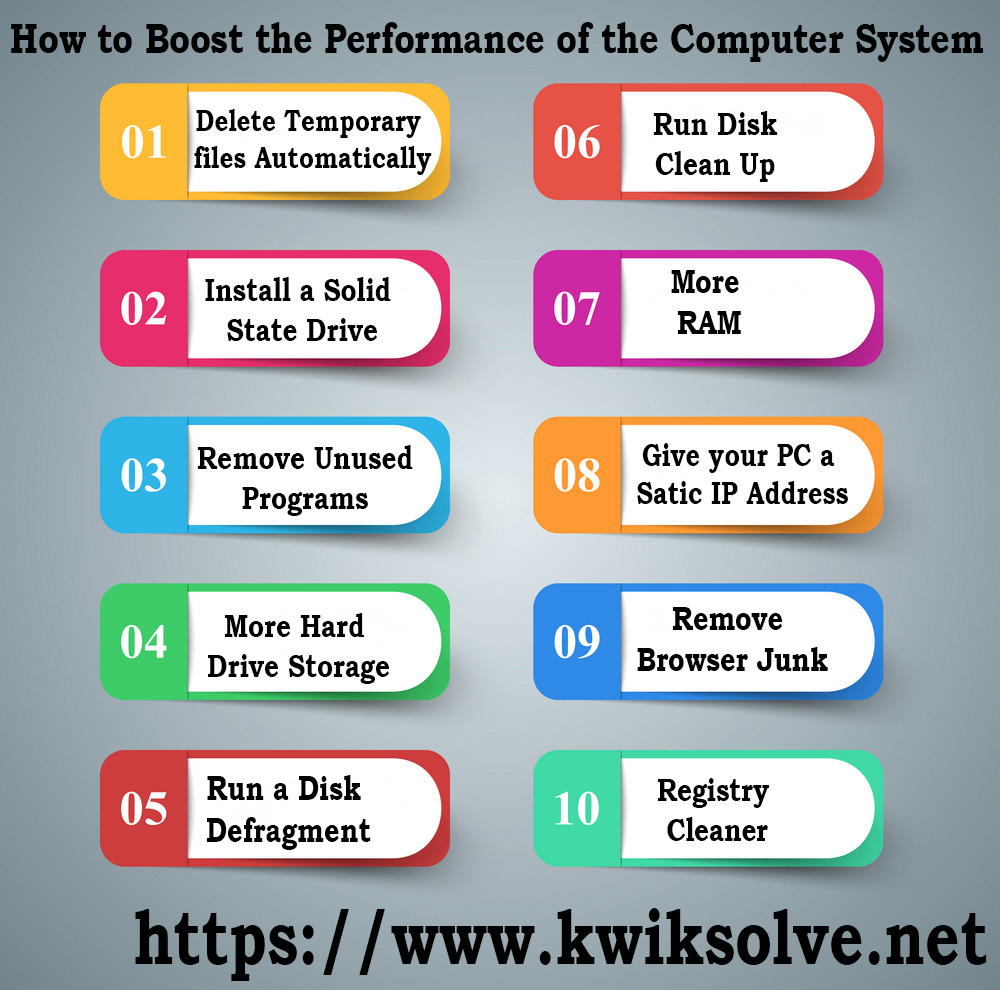
1. Delete temporary files automatically

Temporary files take place through all the tasks and can remain on your hard disk, slowing the PC down. Speed up your PC by removing these files will give you a larger amount of space in your hard disk. Go to “My Computer” and choose the local drive (C Drive). Then, select the “Windows” folder and open the folder named “Temp”. Delete the files in the “Temp” folder.

2. Install a solid state drive

Hard drives are the main reason behind the slow speed of the PC. Installing a solid-state drive can speed up your startup considerably.

3. Remove unused programs

A new PC comes with lots of programs that you will never use and you will not get to know they even exist in your PC. Various programs run in the background while you are loading your PC, though you may not be using them.

4. More hard drive storage

Even if you ensure to clean out all your temporarily files daily, it will affect the speed of your computer.  If you film videos or use your computer system for recording TV, then you need to use a big hard drive space. If You want How do I Manually Optimize my Computer? Click Here

5. Run a disk defragment

This is a method of reconfiguring how your hard drive stores information for maximum efficiency. Go to My Computer > Right click > Properties > Tools > Defragment Now.

6. Run disk clean up

Windows comprise a built-in disk de-cluttering tool called “Disk Cleanup”. It searches through the system for unnecessary large files such as program installers, Internet files and so on.

Go to Start > All Programs > Accessories > System Tools > Disk Cleanup for open disk cleanup.

7. More RAM

Random Access Memory is the storage memory used by your computer and is in use when tasks are being executed by various programs. Therefore, the more programs you use, the more RAM you require, and the slower the performance of your computer will tell you that you don’t have enough space in it. You can either add more RAM with an additional memory stick or two or buy getting completely new memory if all the slots are taken.

8. Give your PC a static IP address

Last but not least, giving a static IP address that remains the same is also a way to speed the performance of your PC. When you use your PC it spends a good amount of time requesting the network for an IP address. If you have a static IP address it will help make managing the network and make the startup faster.

9. Remove browser junk

It happens with us always when we search something on the browser, it works so slowly.  It is better to remove browser junk by removing the entire internet temporary file. This will enhance the speed of your browsing.

10. Registry cleaner

It is important to clean the window registry, as it slows the speed of the computer. Cleaning the registry cleaner not only enhance the performance of the PC but also eliminates the blue screen as well. Read More…
5 Common Issues with Computer System

Imagine, you are working on some important task on your PC, and an error message comes across your screen. What would you do in that case?

Well, most of the difficult problems can be solved by some technicians. And there are lots of issues that hamper your device. Generally, you would run to a repair shop, but sometimes, you don’t need to panic, because there are various issues that each and every computer owner is experiencing. Well, that doesn’t mean you should take these problems lightly, knowing and recognizing some common issues would help in saving time and money. In this article, we will give you information about some common issues that you can experience while using a Computer or Laptop.

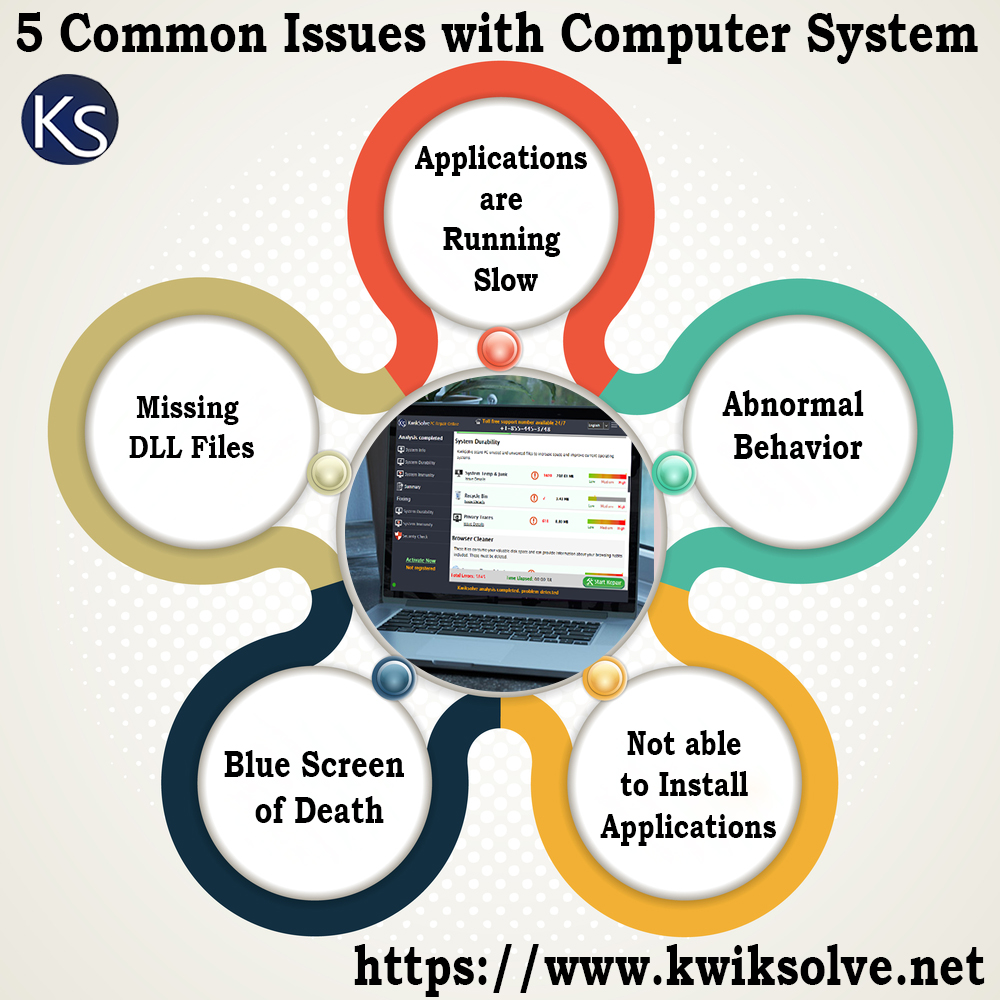
5 common Issues with Computer System


1. Applications are running slow

Sometimes when you didn’t update your OS, the Computer system start running slow. Every time you open an application it just runs slow. This could happen due to lack of space in your hard drive, so, get the best PC cleaner to clean the drive and updating the software and OS would make your PC to run smooth.

2. Abnormal behavior

This is one of the strangest errors of the PC. If you are not able to see the top margin in a word document. It is there in the printout though. Generally, restarting your PC would solve it, but if strange things keep happening then better to go for Computer support services.

3. Not able to install applications

Sometimes, when you try to install an application, your computer doesn’t let you do this particular task. If you can’t download software, then this is due to lack of space in the hard disk. All you need to do is remove the files which are not important. You don’t need any laptop or Computer repair service for this, because being the owner of the PC or laptop, you better know which file is important and which is not. If you want to know in detail about How to Increase PC Speed,  Click Here

4. Blue Screen of Death

Blue Screen of Death is the scariest computer issue that you might come across. Your computer will show a STOP Error. You can experience this issue due to many reasons such as hardware failure, damaged software, and corrupt DLL files.

5. Missing DLL files

DLL files house information for your OS on how to execute different functions. Your PC loses DLL files or something damages them. When your Computer can’t read the DLL file, it doesn’t know how to respond in that situation. You may have a corrupt or missing DLL file if you get an error message every time you perform a different function. Read More…

Reasons Why Computers Fail to Function Normally

Sometimes our PC fails to perform tasks normally due to the severe slowdown of the computer system by the junk files and folder that are created in the PC’s memory. A slow PC can result in the wastage and loss of your useful time while working on it.How to select the best pc cleaner toolsThe main reason for computer failure is human error. It is good to have Best PC Cleaner for your PC. Even when you have safety systems in place, protocols must be followed, such as ensuring your emergency batteries remain charged.
1. Environmental factors

The environment that your PC is stored and operated in can cause a failure if it is not good for the hardware. Computer servers fail in the presence of excessive heat, making cooling systems important. Computer systems produce their own heat; the temperature is optimal for a large server may conflict with the temperature that is preferred by employees.

PCs are sensitive to the amount of electricity they are using. Voltage spikes can wipe your PC and can be a reason for lost data. Surge protectors can assist regulate the electricity to avoid the harmful spike in voltage.

2. Hardware and Software

Maintenance is the best method to avoid failures. Software should be kept updated with the patches available as they become available to resolve any issue that has been discovered. Similarly, your virus protection software should be updated to take benefit of the most recent security threats. More information about How to Select the Best PC Cleaner Tools Click Here?

Backup your data on a regular basis to an external storage device, and learn to recognize the indications of a hardware failure.

3. Power loss

When the power goes out, your PCs will too, which leads to damage and data loss to your system? Having a backup system is very necessary, and should be maintained carefully. A generator can keep your systems up long enough to do vital backups and save your data, before shutting down safely.

If an organization uses a Power Distribution Unit in your PC room to distribute power to the different components, this should be kept in good working order to avoid a power outage to your equipment. Read More…


Some Common Computer System Issues

You are working away at your PC when suddenly an error message comes up. Your computer comes to a screeching halt. Deciphering what computer issues you have and how to solve them can be difficult, especially if you don’t know as much as you’d like about your Computer system. So, here are some of the computer issues.

Infographics box square paper with 5 data template. Vector illus

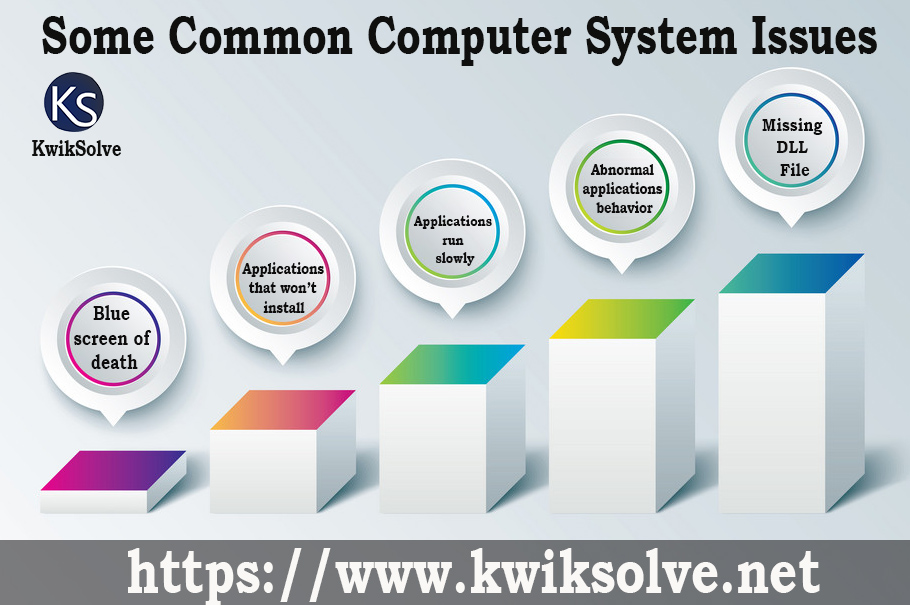
Blue screen of death

Blue screen comes up on your computer screen with a bunch of white text; it probably has the opposite effect. The blue screen of death may appear as the scariest computer issues you’ll come across. However, all your computer may require is for you to reboot it. This STOP error seems on your screen for various reasons: damaged software, failing hardware, corrupt DLL files, issues with drivers and more. The remedy for a blue screen of death depends on the original issue. The screen offers you with codes that can assist you to identify and solve your computer issues. It is much required to use a best PC cleaner to get rid of this issue.

Applications that won’t install

If you are facing issues with the installation of an application, it may be because your PC doesn’t have enough space. If this is the case, you require to free up some space. This problem is the least problematic. You can remove some temporary files which are not used.

Applications run slowly

There are many reasons software might be working at low speed. You as a user may face many types of PC issues that can be related to OS or an application, your computer doesn’t have enough space and OS might be missing updates. If you don’t have enough space in the hard drive, you can scan, clean and optimize your hard drive,

Abnormal applications behavior

Computer issues involve applications acting strangely oftentimes leave you wondering what has happened. Your application is working just fine, it is doing something strange. You can also read How to Boost the PC Performance? Click Here

Missing DLL File

DLL files house information for your OS on how to perform various functions. Your computer fails DLL files or something destroys them. When your computer can’t read the particular DLL file, it doesn’t know how to respond in different situations. You may have a missing or corrupt DLL file if you get an error message when you perform a function. If your PC issues are stemming from damaged and missing DLL files, you can restore them by downloading them back onto your computer system. Read More…

HOW TO CLEAN YOUR COMPUTER SYSTEM

Computer cleaning can be a tiresome task, but the outcome always worth it. Keeping your Computer system clean will do wonders for your speed and reliability. Read this article to learn how to get your computer system back to peak condition.

How to Clean Your Computer System

Always back up

A little preparation is always good before cleanup of your PC. Make sure you use the best PC cleaner so that you can easily backup your files before removing them. You can either do a full back up with a program or just settle for the required files. Copying your things to an external drive guarantees you won’t lose any vital documents.

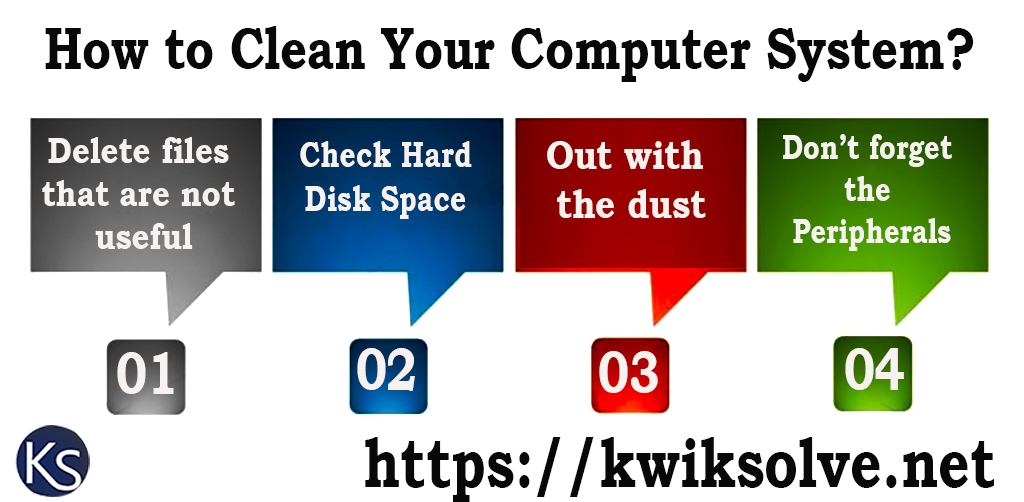
Delete files that are not useful

PCs often end up as repositories for a ton of files that have outlived their usefulness pictures, applications, and media that you just don’t require. The clutter slows your hard drive and memory, so just remove it. Go through your installed programs with the Control Panel and choose one which is really used. Uninstall the rest. Moreover, remove any setup files and empty the Recycle Bin once you are finished.

Take care of your Browsers

Everyone uses a browser; we check e-mail, search or work on documents online most of the time. A lot of work slows the system down and makes you less efficient. A little browser maintenance will change your PC. This outcome will be anything from faster load times to a cleaner virtual workspace. Moreover, delete the bookmarks you have already used.

Check Hard Disk Space

You can clean your PC by checking the hard disk. Remove all the unwanted files in your hard disk so that you have enough space for new files and programs. You can also read Does PC Optimizer Software Really Work Click Here

Out with the dust

Cleaning the PC physically is as important as tidying up the software. It takes a couple of months for your fans to catch an amount of dust. Cleaning the literal insides of your PC avoids overheating, which keeps your hardware healthy for a longer time.

Don’t forget the Peripherals

Think of peripherals as your PC’s external organs – keyboards and mouse are limbs, monitors are eyes, speakers are ears etc. All of them need to be cared for in an accurate manner. We assume you clean them on a regular basis. Before cleaning the peripherals make sure to power off them.

kwiksolve img1.1

Read More…